
WordPress Plugin
The ResponsiveVoice Text To Speech plugin adds spoken audio to WordPress posts and pages. There are two ways to use it:
- The WebPlayer — an automatic floating audio player that reads a post aloud, with paragraph highlighting and playback controls. No per-post markup required.
- Listen buttons — classic “read this” buttons you place with a shortcode or a Gutenberg block.
With a free API key, both speak in 100+ voices across 50+ languages. They work on smartphone, tablet, and desktop, with nothing extra to install on your server.
Requirements
Section titled “Requirements”| Requirement | Minimum |
|---|---|
| WordPress | 6.3 |
| PHP | 7.4 |
| License | GPLv2 or later |
An API key is optional but recommended — without one the plugin runs in a limited demo mode.
Install and activate
Section titled “Install and activate”- Install ResponsiveVoice Text To Speech from the WordPress plugin directory, or upload the plugin ZIP under Plugins → Add New → Upload Plugin.
- Activate it through the Plugins menu.
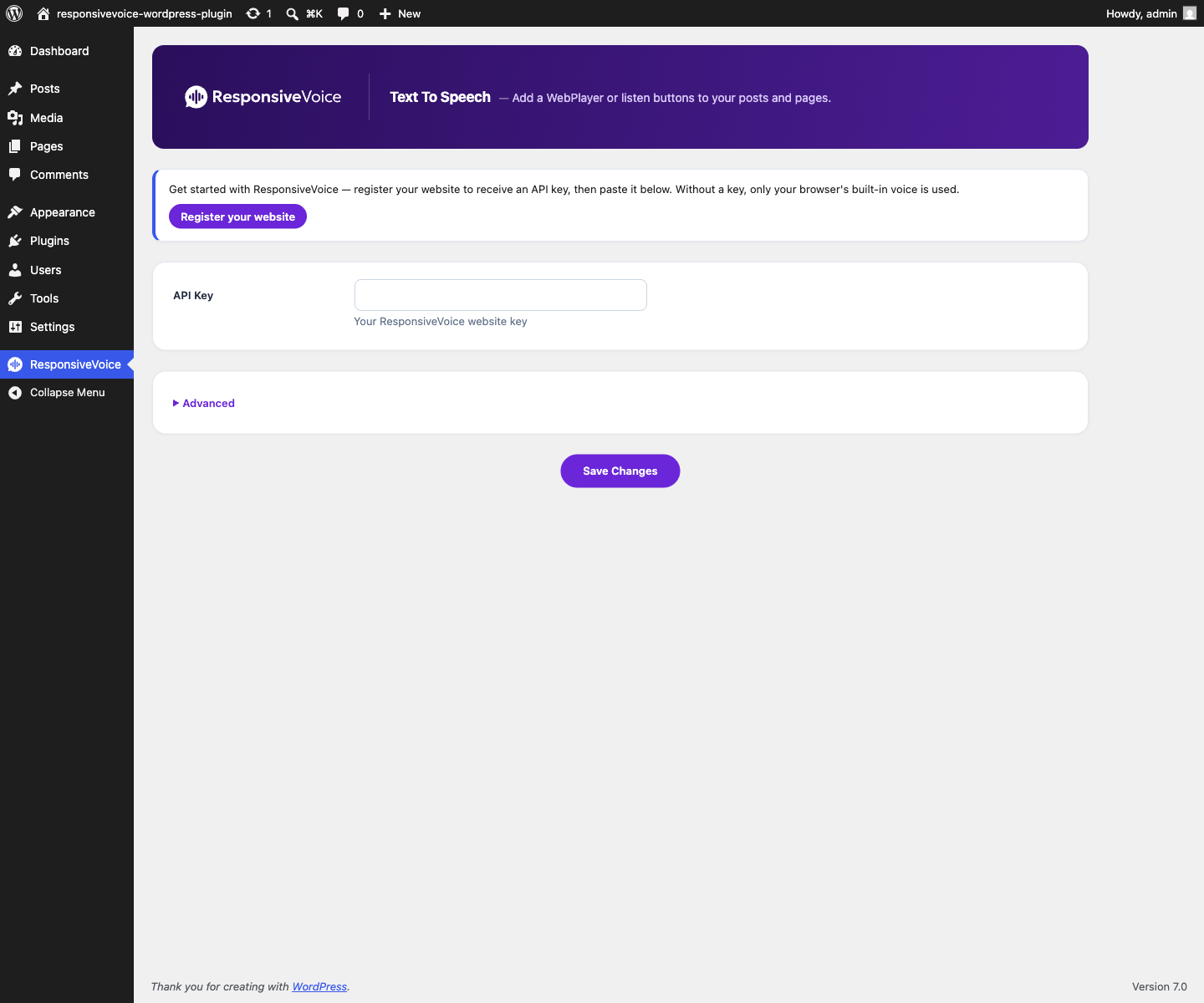
- Open the ResponsiveVoice admin page from the WordPress sidebar.
Get an API key
Section titled “Get an API key”Your API key is a public website identifier, not a secret — it names your site to the ResponsiveVoice service so the right voice catalog and configuration load.
- Register for a free account.
- Copy your API key from the ResponsiveVoice dashboard.
- Paste it into the ResponsiveVoice admin page in WordPress.
Verify your website
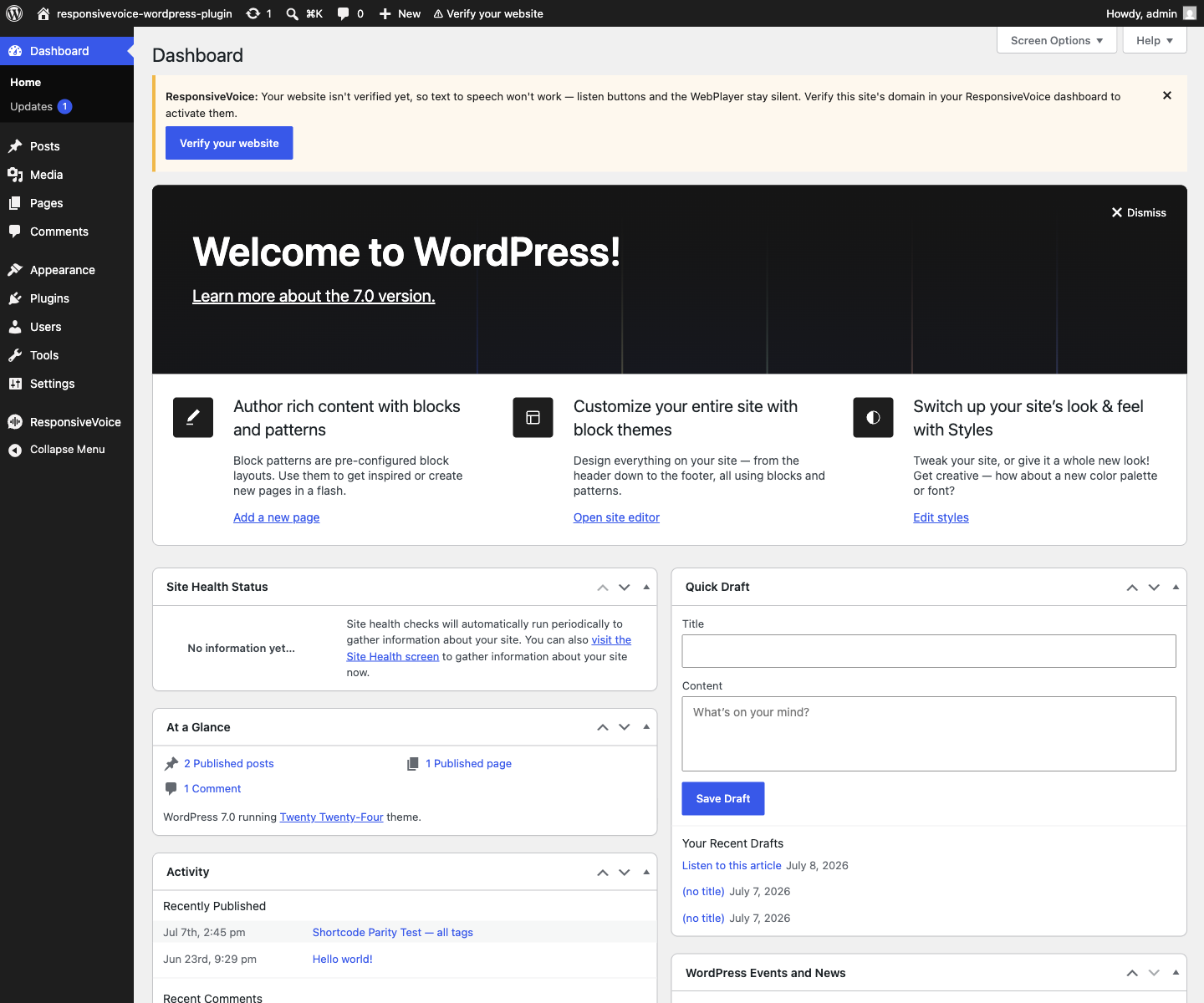
Section titled “Verify your website”With an API key set, text to speech activates once your site’s domain is verified in the ResponsiveVoice dashboard — on an unverified site the listen buttons and the WebPlayer stay silent. Verification is detected in the visitor’s browser — no secret is stored in WordPress.
Until your domain is verified, the plugin shows a “verify your website” prompt in place of the player, and wp-admin shows a dashboard notice and admin-bar reminder.
The WebPlayer
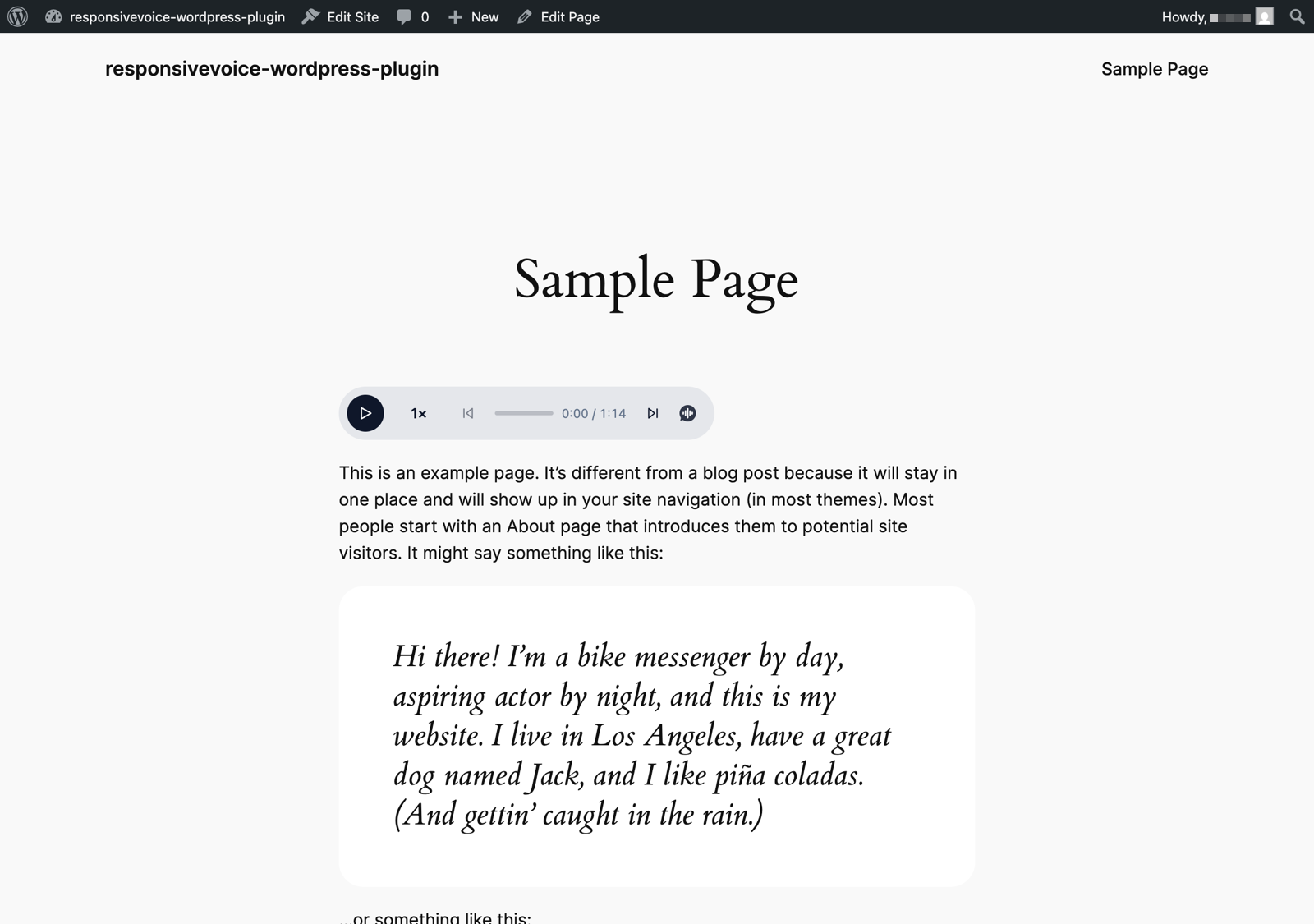
Section titled “The WebPlayer”The WebPlayer is a drop-in article reader — paragraph highlighting, click-to-jump, playback controls, and a floating mini-player that follows the reader once the main controls scroll out of view.
Try it live: the Web Player example shows the full player in action.
Enable modes
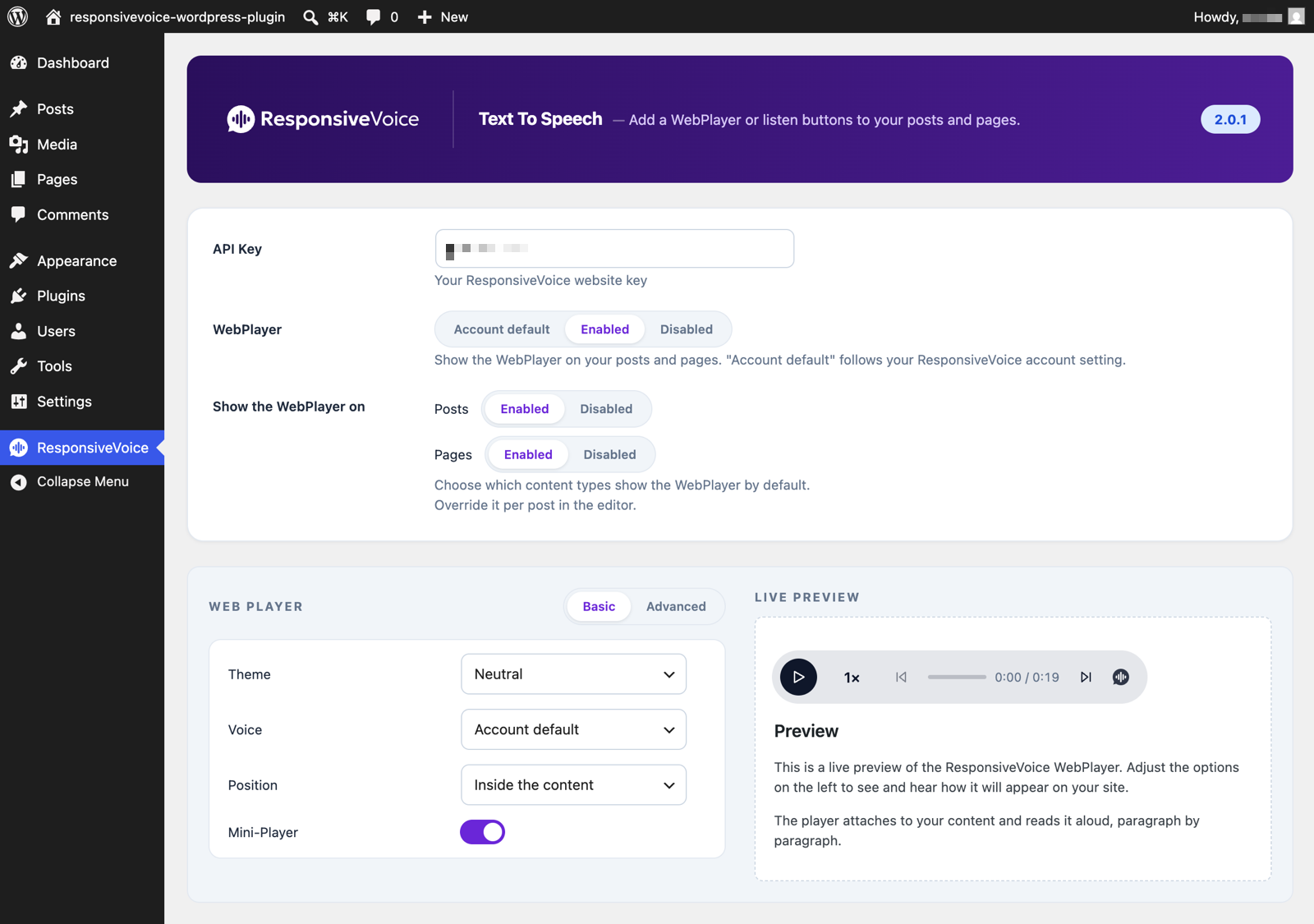
Section titled “Enable modes”The single ResponsiveVoice settings page holds your API key and a WebPlayer control at the top, with a collapsed Advanced section below. The WebPlayer control is a segmented switch:
- Account default — follow your ResponsiveVoice account setting.
- Enabled — show the WebPlayer on this site.
- Disabled — hide the WebPlayer on this site.
Advanced delivery
Section titled “Advanced delivery”The Advanced section also controls how the ResponsiveVoice library is delivered: from cdn.responsivevoice.org (default, always current), pinned to an exact version, or bundled — served from your own site, for CSP-strict setups.
Choose where it shows
Section titled “Choose where it shows”The WebPlayer switch sets the site-wide default; two finer levels narrow it down:
- Per content type — the Show the WebPlayer on setting toggles it for posts, pages, and custom content types.
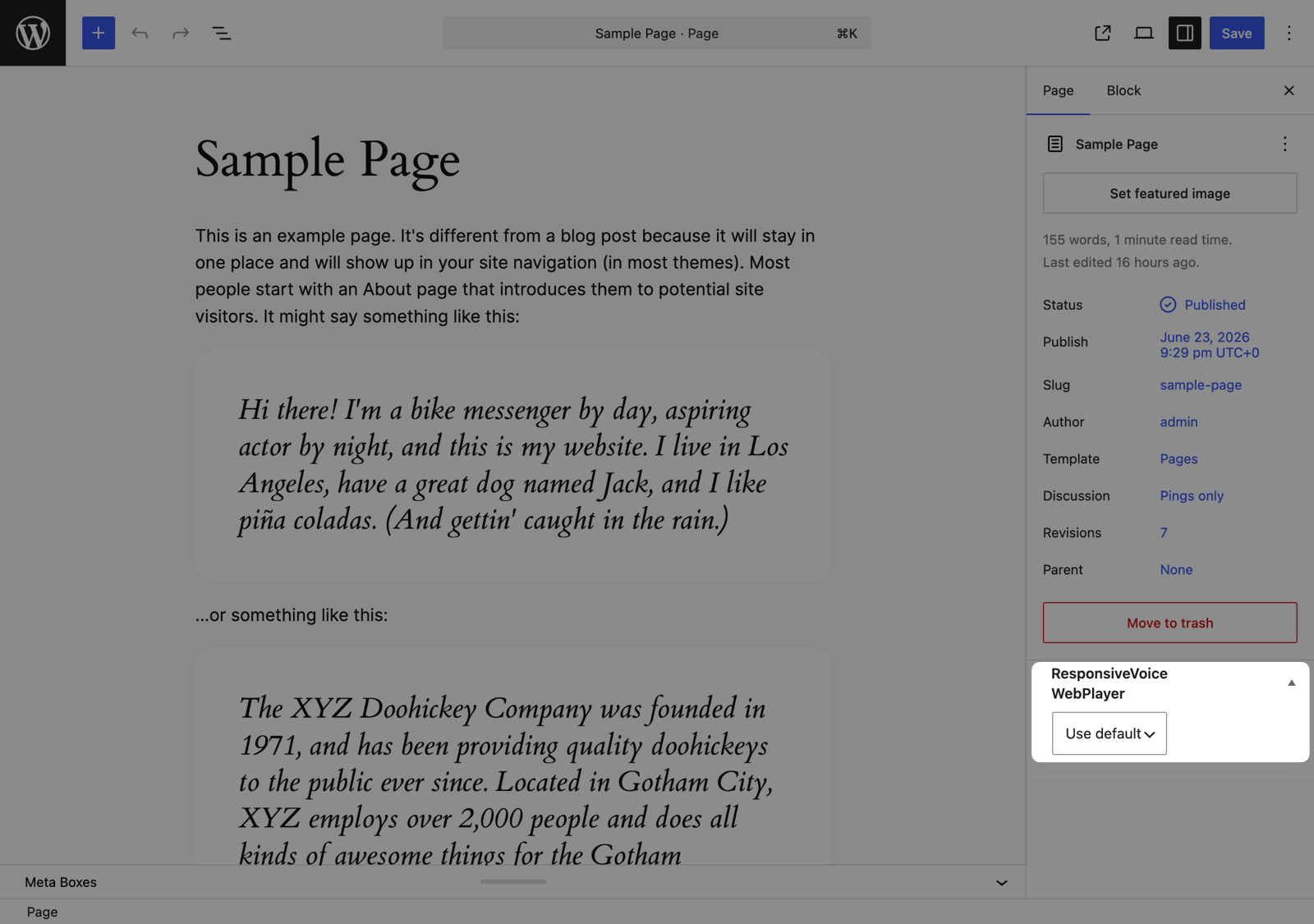
- Per post — a ResponsiveVoice WebPlayer panel in the editor sidebar overrides the default for a single post: Use default, Enabled, or Disabled.
Customizer
Section titled “Customizer”The admin page includes a live customizer with an instant preview. It surfaces a curated set of the player’s options — the rest come from your dashboard configuration, which the plugin’s settings layer over:
- Theme — presets plus custom colors.
- Layout — how the player sits relative to the content.
- Controls — which buttons and readouts appear.
- Voice — the default voice for the player.
- Position — where the player is placed; it aligns to your theme’s content column.
For a re-themed player in action, see the customization example. For everything the player can do beyond these, see the Web Player guide and dashboard configuration.
Listen buttons
Section titled “Listen buttons”Prefer a tap-to-listen button over an automatic player? Place one anywhere with a shortcode or the Gutenberg block. Buttons speak with your account’s default voice unless you set the voice attribute. Output is CSP-clean — the buttons carry data-* attributes with no inline JavaScript.
Shortcodes
Section titled “Shortcodes”Adds a button that reads the entire post or page.
[responsivevoice_button][responsivevoice_button voice="US English Female" buttontext="Play"]Aliases: [ListenToPostButton], [RVListenButton].
Defaults: buttontext="Listen to this".
Wraps a passage; only the enclosed text is read.
[responsivevoice]Text you want read aloud[/responsivevoice][responsivevoice buttonposition="after"]Text read aloud, button after[/responsivevoice]Alias: [ResponsiveVoice].
Defaults: buttontext="Play", buttonposition="before".
Shortcode attributes
Section titled “Shortcode attributes”| Attribute | Applies to | Description |
|---|---|---|
voice | all | Voice name, e.g. US English Female. |
buttontext | button, section | Label shown on the button. |
buttonposition | section | before (default) or after the text. |
class | button, section | Extra CSS classes on the rendered button. |
rate | button, section | Speech rate. |
pitch | button, section | Speech pitch. |
volume | button, section | Speech volume. |
Gutenberg block
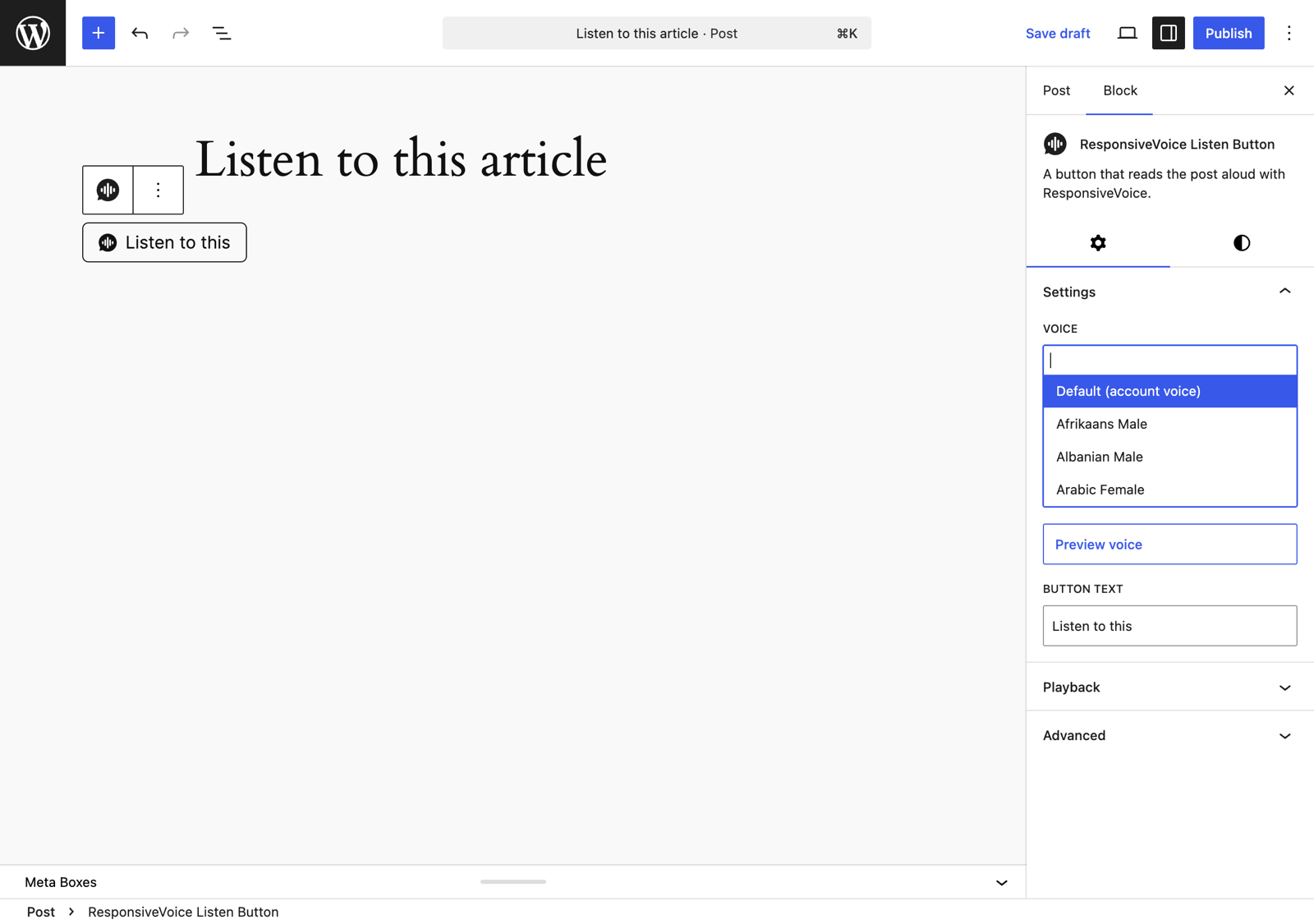
Section titled “Gutenberg block”In the block editor, add the Listen Button block (rvtts/listen-button) — a server-rendered listen button. Its settings panel offers:
- Voice — a live picker of your account’s voice catalog, with a Default (account voice) option.
- Preview voice — hear the selected voice without leaving the editor.
- Button text — the button label.
- Playback — rate, pitch, and volume sliders.
The block also supports WordPress’s native styling controls — color (including gradients), typography, spacing, and border.
Languages and voices
Section titled “Languages and voices”The full catalog — 100+ voices across 50+ languages — is resolved through the ResponsiveVoice voice resolution chain (native Web Speech where available, server fallback otherwise). Bring-Your-Own-Key providers add premium neural voices on top.
The catalog is fetched and cached at runtime, so it improves without updating the plugin. Browse the current list in the Gutenberg block’s Voice picker or the customizer’s Voice dropdown — both always reflect your account’s catalog — or call responsiveVoice.getVoices().
Upgrading from 1.7.x
Section titled “Upgrading from 1.7.x”Version 2.0 upgrades in place — your API key, settings, and existing shortcodes carry over with no changes required.
- All 1.x shortcode tags and attributes keep working.
- Buttons now use a neutral style with the ResponsiveVoice icon; restyle them with the
classattribute or your own CSS. - The
[responsivevoice_box]voicebox shortcode (and its aliases) was removed. - v1 (legacy) accounts keep Listen buttons and shortcodes in full — the WebPlayer needs a v2 account (see the FAQ).
Do I need an API key?
Section titled “Do I need an API key?”
Do I need an API key?
Section titled “Do I need an API key?”No, but you’ll want one. Without a key, the listen buttons speak with the browser’s built-in voice and the WebPlayer is unavailable. A free API key unlocks the full voice catalog — delivered through a fast text-to-speech API for high-quality voices — plus the WebPlayer; both activate once your domain is verified. It also opens the door to audio streaming and premium neural voices (Google Cloud, Microsoft Azure, OpenAI) via Bring Your Own Key. The key is a public website identifier, not a secret.
Why isn’t the WebPlayer playing?
Section titled “Why isn’t the WebPlayer playing?”
Why isn’t the WebPlayer playing?
Section titled “Why isn’t the WebPlayer playing?”First make sure an API key is set — the WebPlayer’s controls appear on the settings page only once a key is in place. Then check that your domain is verified — an unverified site silences all text to speech, listen buttons included. If both are in order, one of the three visibility levels may be hiding it.
I upgraded from 1.7.x — will my existing shortcodes keep working?
Section titled “I upgraded from 1.7.x — will my existing shortcodes keep working?”
I upgraded from 1.7.x — will my existing shortcodes keep working?
Section titled “I upgraded from 1.7.x — will my existing shortcodes keep working?”Yes — all 1.x shortcode tags and attributes keep working, and your API key and settings carry over. See Upgrading from 1.7.x for the two visible changes.
How do I show the WebPlayer only on some content?
Section titled “How do I show the WebPlayer only on some content?”
How do I show the WebPlayer only on some content?
Section titled “How do I show the WebPlayer only on some content?”Three levels — the site-wide switch, per-content-type toggles, and a per-post override in the editor. Details in Choose where it shows.
Can I control where the player appears on the page?
Section titled “Can I control where the player appears on the page?”
Can I control where the player appears on the page?
Section titled “Can I control where the player appears on the page?”Yes — the customizer’s Position control places it before, after, or inside your content, aligned to your theme’s content column, or attaches it to any CSS selector you choose. For everything beyond the customizer, see the Web Player guide.
I’m on a v1 (legacy) account — what do I get?
Section titled “I’m on a v1 (legacy) account — what do I get?”
I’m on a v1 (legacy) account — what do I get?
Section titled “I’m on a v1 (legacy) account — what do I get?”Listen buttons and shortcodes work fully. The WebPlayer needs a v2 account — the settings page offers a reversible Try the v2 WebPlayer preview, and upgrading is free.
Can I use premium neural voices?
Section titled “Can I use premium neural voices?”
Can I use premium neural voices?
Section titled “Can I use premium neural voices?”Yes — on ResponsiveVoice v2, Bring Your Own Key (BYOK) connects premium providers (Google Cloud, Microsoft Azure, OpenAI and more) through your dashboard, adding thousands of neural voices to your catalog. Voices you add appear in the plugin automatically — in the block’s voice picker and the WebPlayer — with no plugin configuration.
Does it work with page builders and the Classic editor?
Section titled “Does it work with page builders and the Classic editor?”
Does it work with page builders and the Classic editor?
Section titled “Does it work with page builders and the Classic editor?”Yes — the shortcodes work in any editor or page builder that renders WordPress shortcodes (the Classic editor, Elementor, and the like), and the WebPlayer attaches to your rendered content no matter what built it. The Listen Button block needs the block editor. More editor integrations are planned.
What data is sent to ResponsiveVoice?
Section titled “What data is sent to ResponsiveVoice?”
What data is sent to ResponsiveVoice?
Section titled “What data is sent to ResponsiveVoice?”When a visitor plays audio, the text to read and your site’s public API key are sent to the ResponsiveVoice API from their browser. Full detail in External services and privacy.
Will the plugin slow my site down?
Section titled “Will the plugin slow my site down?”
Will the plugin slow my site down?
Section titled “Will the plugin slow my site down?”It’s built not to — its scripts load at the end of the page and don’t block rendering, and speech is synthesized only when a visitor presses play. Sites with strict CSP or asset policies can switch to bundled delivery or pin a library version — see Advanced delivery.
External services and privacy
Section titled “External services and privacy”This plugin relies on the ResponsiveVoice service to synthesize speech, so text and your API key are sent to it from visitors’ browsers.
- The ResponsiveVoice SDK loads from
cdn.responsivevoice.org, or, in bundled delivery mode, is served from your own site. - When a visitor plays audio, the text to read and your site’s public API key are sent to the ResponsiveVoice Text-To-Speech API to generate audio. The plugin also reads your site configuration from the API to enable the WebPlayer.
See the Terms of Service and Privacy Policy.