
App Features
The ResponsiveVoice app lets you turn website voice features on and off without writing custom JavaScript. These features use the same v2 configuration that powers the SDK, so changes made in the app are reflected in the website configuration returned to your installed ResponsiveVoice script.
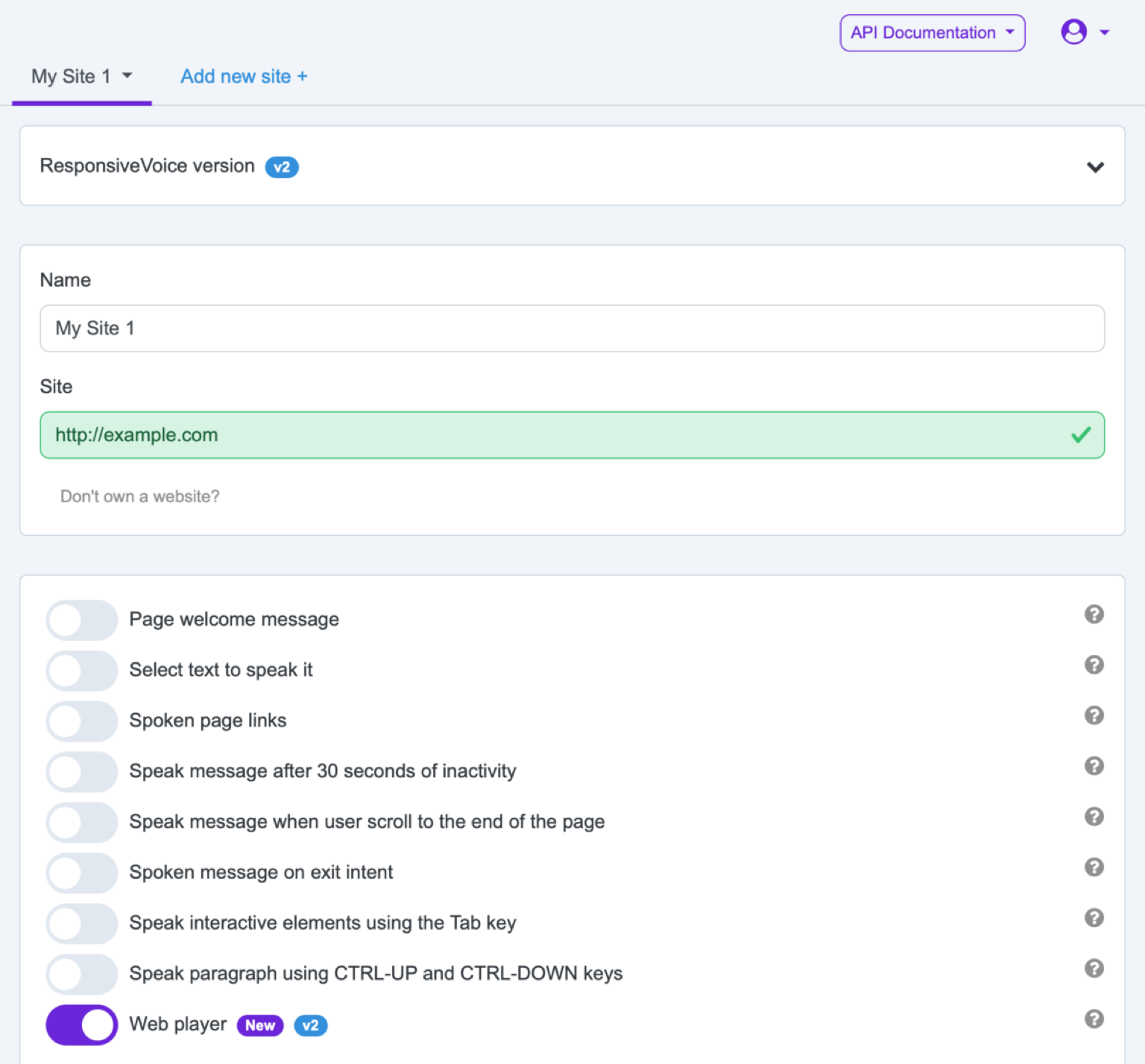
Quick Reference
Section titled “Quick Reference”| Feature | What it does |
|---|---|
| Welcome message | Speaks a short message after the page loads. |
| Speak selected text | Speaks text the visitor highlights. |
| Speak links | Speaks link text when the visitor hovers over a link. |
| Accessibility navigation | Speaks interactive elements as the visitor tabs through the page. |
| Paragraph navigation | Lets visitors move through readable text with Ctrl+Up and Ctrl+Down. |
| Inactivity message | Speaks after a period without visitor interaction. |
| End-of-page message | Speaks when the visitor reaches the bottom of the page. |
| Exit-intent message | Speaks when the visitor moves toward leaving the page. |
| Multiple messages | Rotates between several message variants. |
| Web player | Adds an article reader with highlighting and a mini-player. |
Welcome Message
Section titled “Welcome Message”The welcome message speaks a short greeting or instruction shortly after a visitor opens the page.
Use it for a brief introduction, not for long announcements. A good message tells visitors what they can do next, for example: “Welcome. Select any text to hear it spoken aloud.”
Configuration notes:
- Enable Welcome message in the app.
- Enter the message text.
- Use Play welcome message once per session when repeat playback would be annoying.
- Preview the message before saving.
Troubleshooting:
- The message plays once the visitor responds to the permission prompt — browsers don’t allow audio before that first interaction, so it won’t speak the instant the page loads.
- Keep the text short so it does not overlap with other automatic messages.
Speak Selected Text
Section titled “Speak Selected Text”Speak selected text lets visitors highlight text on the page and hear it spoken aloud.
This is useful for readers who want help with a sentence, word, product description, or article section without playing the whole page.
Configuration notes:
- Enable Speak selected text in the app.
- Save the configuration and reload the website page.
- Test by selecting a short piece of visible text.
Troubleshooting:
- Text inside buttons, forms, scripts, or hidden elements may not be suitable for selection playback.
- If a page prevents text selection with CSS or custom JavaScript, this feature may not trigger.
Speak Links
Section titled “Speak Links”Speak links reads the visible text of a link when a visitor hovers over it.
This helps visitors understand where a link goes before activating it. It works best when links have meaningful labels such as “View pricing” rather than vague labels such as “Click here.”
Configuration notes:
- Enable Speak links in the app.
- Save and reload the website page.
- Hover over a normal text link to test it.
Troubleshooting:
- Links with no visible text or only decorative icons may not produce useful speech.
- For keyboard-first navigation, use Accessibility navigation.
Accessibility Navigation
Section titled “Accessibility Navigation”Accessibility navigation speaks interactive elements as visitors move through the page with the Tab key.
It is intended for links, buttons, and form controls. The spoken text comes from the element label, accessible name, or visible text.
Configuration notes:
- Enable Speak interactive elements using the Tab key in the app.
- Save and reload the website page.
- Press Tab through the page and listen to each focused element.
Troubleshooting:
- If an element has no useful label, improve its visible text,
aria-label, or associated form label. - Avoid enabling too many automatic speech features on the same page until you have tested the experience.
Paragraph Navigation
Section titled “Paragraph Navigation”Paragraph navigation lets visitors move through readable page content with Ctrl+Up and Ctrl+Down while hearing the current paragraph.
This is useful for long-form pages, help articles, and documentation where visitors may want keyboard control over reading.
Configuration notes:
- Enable Speak paragraph using CTRL-UP and CTRL-DOWN keys in the app.
- Save and reload the website page.
- Test on a content-heavy page with normal paragraphs and headings.
Troubleshooting:
- Short pages may not have enough readable blocks for this to feel useful.
- Pages with unusual markup may need the Web Player advanced content settings instead.
Inactivity Message
Section titled “Inactivity Message”The inactivity message speaks after the visitor has not interacted with the page for a period of time.
Use it carefully. The best messages are short and helpful, such as “Still there? You can press play to listen to this page.”
Configuration notes:
- Enable Inactivity message in the app.
- Enter the message text.
- Preview the message before saving.
Troubleshooting:
- Do not combine long inactivity, welcome, end-of-page, and exit-intent messages without testing the page flow.
- If visitors report unexpected audio, shorten the message or disable this feature on quieter pages.
End-of-Page Message
Section titled “End-of-Page Message”The end-of-page message speaks when the visitor reaches the bottom of the page.
Use it as a closing prompt, such as a support reminder, next step, or short call to action.
Configuration notes:
- Enable End-of-page message in the app.
- Enter the message text.
- Scroll to the bottom of a test page after saving.
Troubleshooting:
- Infinite-scroll pages or pages with dynamically loaded content may need extra testing.
- Keep the message short enough that it does not interrupt normal navigation.
Exit-Intent Message
Section titled “Exit-Intent Message”The exit-intent message speaks when the visitor moves the pointer toward leaving the page.
Use it sparingly. It can be helpful for short reminders, but it can also surprise visitors if it is too long or too frequent.
Configuration notes:
- Enable Exit-intent message in the app.
- Enter a short message.
- Test by moving the pointer toward the top of the browser window.
Troubleshooting:
- Exit intent is pointer-based and may not apply on all touch devices.
- Avoid using this feature for essential information.
Multiple Messages
Section titled “Multiple Messages”Message fields can contain several alternatives separated by a pipe character (|). ResponsiveVoice chooses one at random when the feature speaks.
Example:
Welcome to our site.|Need help? Select any text to hear it spoken.|You can listen to this page while you browse.This works for message-style features such as welcome, inactivity, end-of-page, and exit-intent messages.
Tips:
- Keep each variant short.
- Do not put a pipe character inside the message itself.
- Preview several times when testing random messages.
Web Player
Section titled “Web Player”The web player adds a visible article reader with paragraph highlighting, click-to-jump, and playback controls. This is what your visitors see:

When the main control scrolls out of view, a floating mini-player keeps playback within reach:

You configure all of this from the Web Player panel in the app — no code required. Each section below maps an app setting to what it does. Developers installing or overriding the player in code should use the Web Player guide instead.
Choose a preset — Neutral or ResponsiveVoice — or set custom colors to match your brand.

Layout
Section titled “Layout”
| App field | Default | What it does |
|---|---|---|
| Position | Before the content | Before, after, or inline with the content, or inside a custom slot. |
| Width | Shrink to content | Shrink hugs the controls; Fill spans the container. |
| Display | Block (on its own line) | Block gives the player its own line; Inline flows with surrounding text. |
Controls
Section titled “Controls”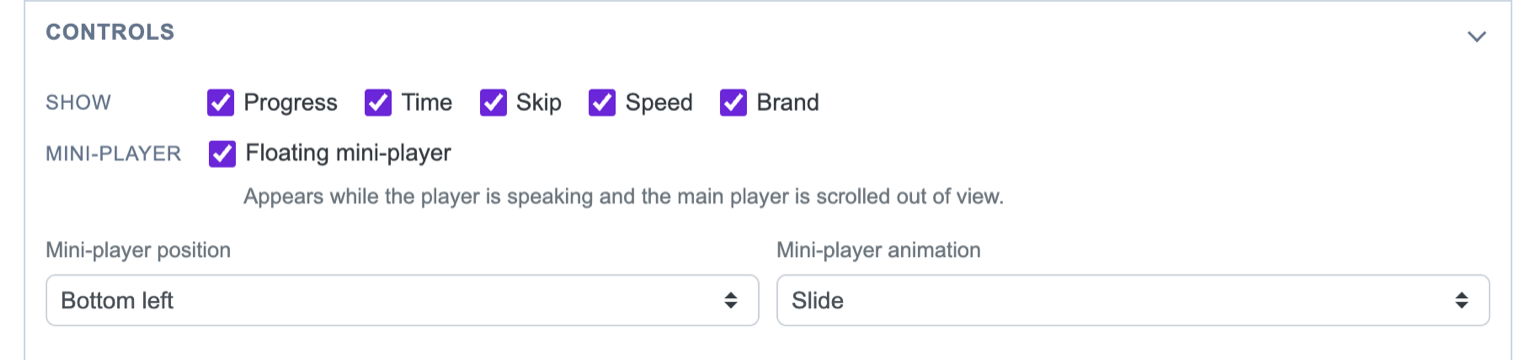
| App field | Default | What it does |
|---|---|---|
| Progress | On | Shows progress through the readable content. |
| Time | On | Shows elapsed and total estimated time. |
| Skip | On | Shows previous and next paragraph buttons. |
| Speed | On | Shows the speed cycle button. |
| Brand | On | Shows the ResponsiveVoice brand icon. |
| Floating mini-player | On | Shows the mini-player when the main player is out of view. |
| Mini-player position | Bottom left | Places the mini-player in a viewport corner or custom offset. |
| Mini-player animation | Slide | Uses Slide, Fade, Pop, or None. |
Behavior
Section titled “Behavior”
| App field | Default | What it does |
|---|---|---|
| Highlight paragraphs | On | Highlights the currently spoken element. |
| Click to jump | On | Lets visitors click a paragraph to start reading there. |
| Skip code & hidden content | On | Excludes scripts, styles, form controls, embedded media, and hidden content from narration. |
Advanced
Section titled “Advanced”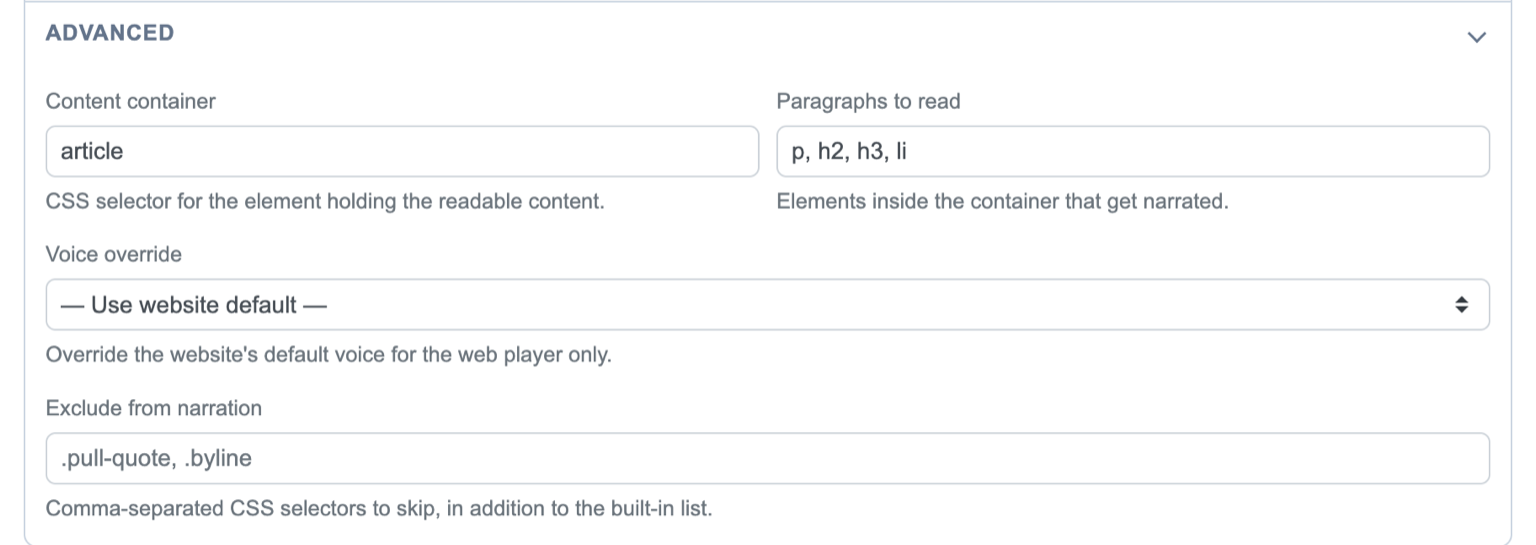
| App field | Default | What it does |
|---|---|---|
| Content container | article | CSS selector for the element that contains readable content. |
| Paragraphs to read | p, h2, h3, li | CSS selector for the readable elements inside the container. |
| Voice override | Website default | Optional voice for this player only. |
| Exclude from narration | empty | Extra CSS selectors to skip, in addition to the built-in exclusions. |
Troubleshooting
Section titled “Troubleshooting”The player doesn’t appear
Section titled “The player doesn’t appear”Confirm the Web Player toggle is on and your ResponsiveVoice script is installed on the page. If you set a Content container, make sure it matches an element that exists on the page.
The player is in the wrong place
Section titled “The player is in the wrong place”Adjust Position under Layout. If your theme wraps the whole page in one article, point Content container at the specific content area instead.
The wrong text is read, or paragraphs are missing
Section titled “The wrong text is read, or paragraphs are missing”Check that Paragraphs to read matches your content, and that nothing you want read is being removed by Skip code & hidden content or Exclude from narration.
The mini-player doesn’t appear
Section titled “The mini-player doesn’t appear”Confirm Floating mini-player is on, then scroll until the main player leaves view while it is playing.
Live preview and testing
Section titled “Live preview and testing”Use the app preview to confirm the experience before saving, then test once on the real site too:
- Press play and confirm the selected voice sounds right.
- Confirm the progress, time, skip, speed, and brand controls match the Controls panel.
- Click a paragraph if Click to jump is enabled.
- Confirm highlighting appears if Highlight paragraphs is enabled.
- Scroll until the main player leaves view and confirm the mini-player appears if enabled.
- Add a known excluded element and confirm it is skipped.
Advanced Usage
Section titled “Advanced Usage”Need to install, theme, or override the player in code? The developer guide covers the programmatic path with init() and mount().